
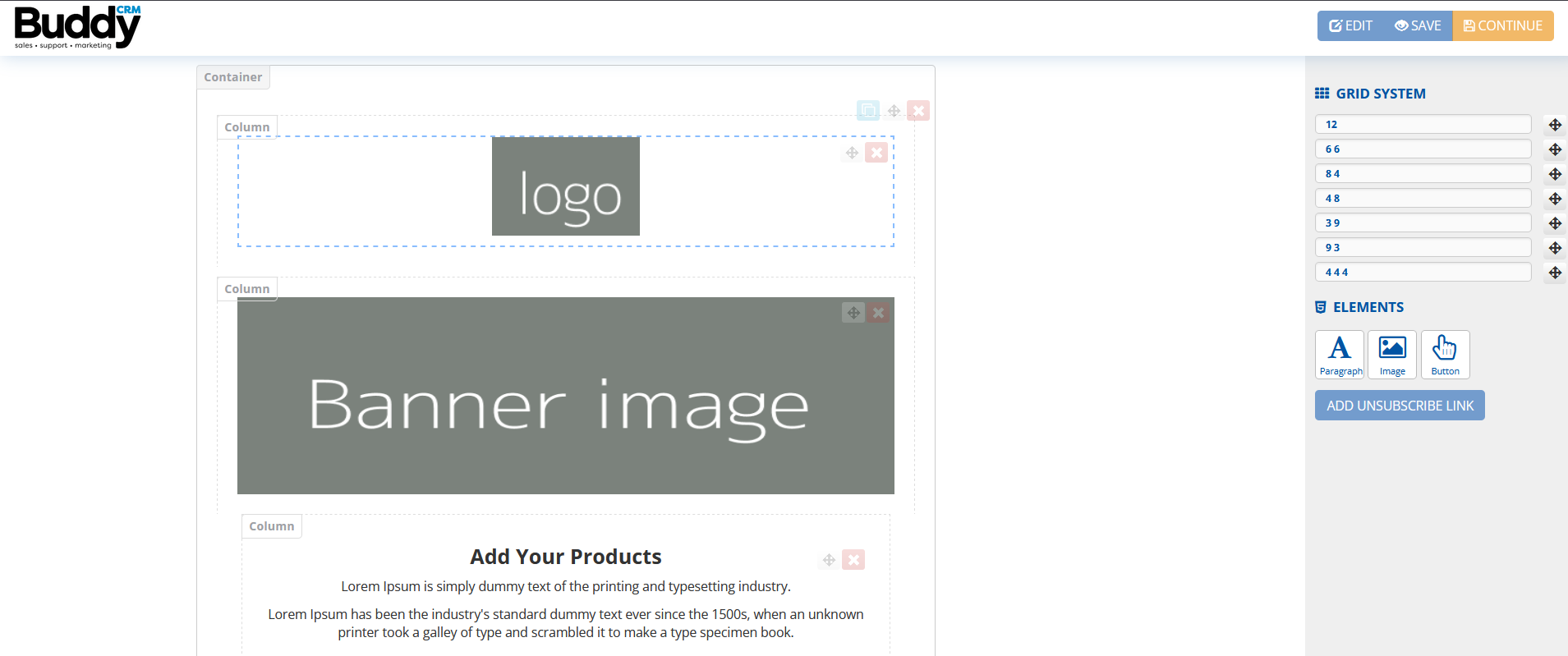
This article focuses on the email builder within the BuddyCRM marketing suite to build rich HTML emails. These emails can then be used as part of ‘one-shot’ email campaigns (useful for newsletters, announcements or promotions) or can be stored and used on an ongoing basis for automated campaigns like drip campaigns.
If you have not yet created a campaign to use for the email builder, you can follow the guide here.
Select your template
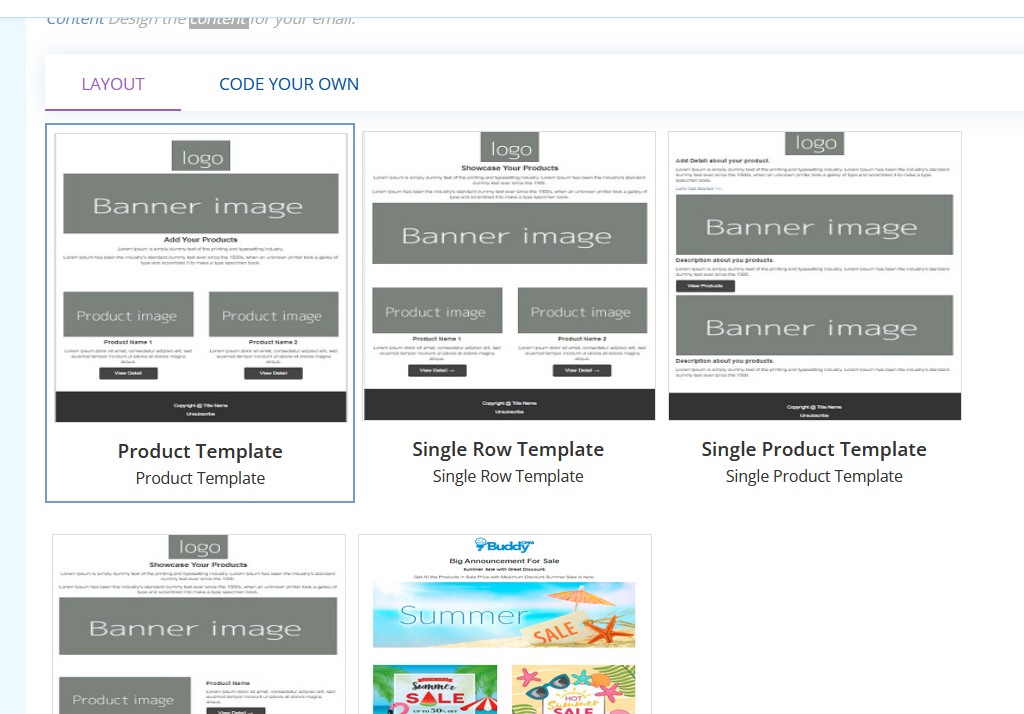
There are a few pre-created templates to get you started for a range of purposes:
Product Template
Single Row Template
Single Product Template
Single Product Template Detail
Complete Template
Choose ‘select template’ to open the email builder, then hit the top-most ‘Edit’ to get started.
Grid system

BuddyCRM utilises a 12 grid system within the email builder to help you to arrange the different elements on the page. This is a common and well-established layout method in marketing, aimed at improving compatibility with the widest range of possible email clients, browsers and devices. In essence there are different page splits, that total up to 12 grids in total.
For example utilising ’12’ will take up the full width of the page. ‘6 6’ will insert two columns that each take up half of the page. ‘4 4 4’ will insert three equal columns.
Drag and drop in the column divider that you would like to your page, and it will create column containers to add elements into, for example in the image below highlighting a ‘6 6’:

You can rearrange columns on the page using the cross drag and drop icon, or remove using the red ‘x’. The blue icon next to the drag and drop button will duplicate the columns below.
Elements

There are different elements that can be dragged into your email and then edited to bring your email to life. After dragging in an element, you can click on the gear icon in the top-right of the element, to open an edit pane:
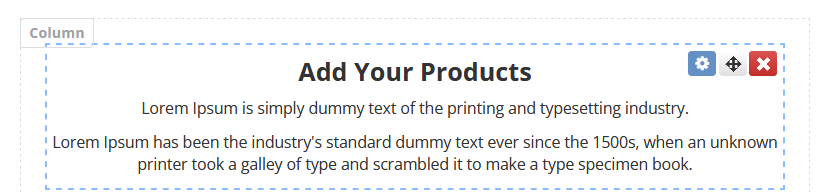
The edit pane for any element will open on the right-hand side. Remember to hit ‘apply changes’ for changes to update in the main window!
Paragraph

There are usual font controls including bold, italic, text colour and highlight as well as justification buttons to specify text alignment.
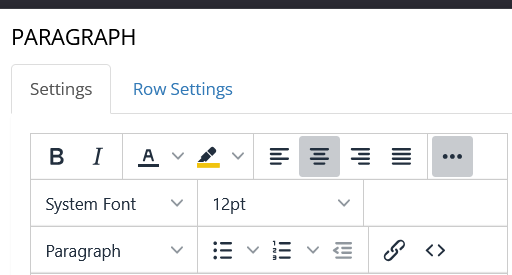
Behind the ‘…’ there are further controls including font selection and font size, styles, bullet point and number list. You can also insert hyperlinks to the text, which is a really important feature for linking to other webpages. You can also inspect and edit the HTML source of the individual paragraph.
The Row Settings tab at the top of the edit pane allows you to modify row background colour.
You can also drag in merge tags to pull data in from your BuddyCRM database fields. There is a guide to setting these up here.
Image
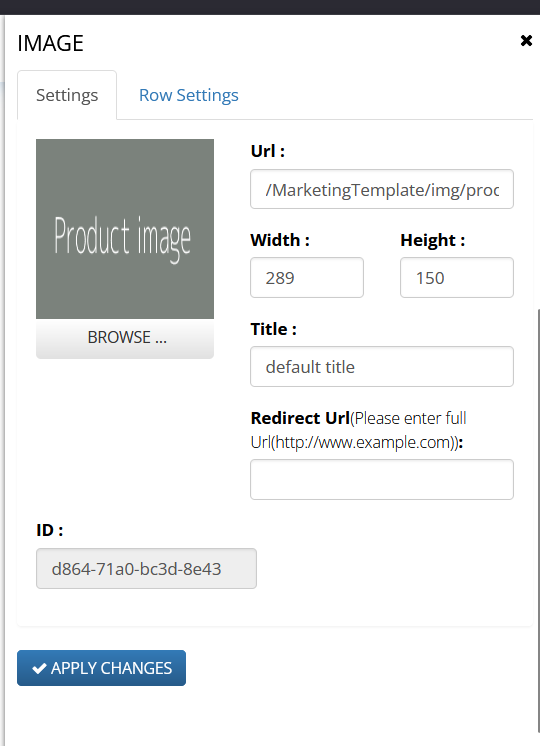
Browse will open the BuddyCRM file manager to select the image to insert. You can use upload new document to upload a new file at this stage if the asset you need has not yet been uploaded.
You can adjust the width and height of the image, as well as set a title for the image. Redirect URL allows your image to redirect the user to a different webpage when a link is clicked, a powerful feature.
Button
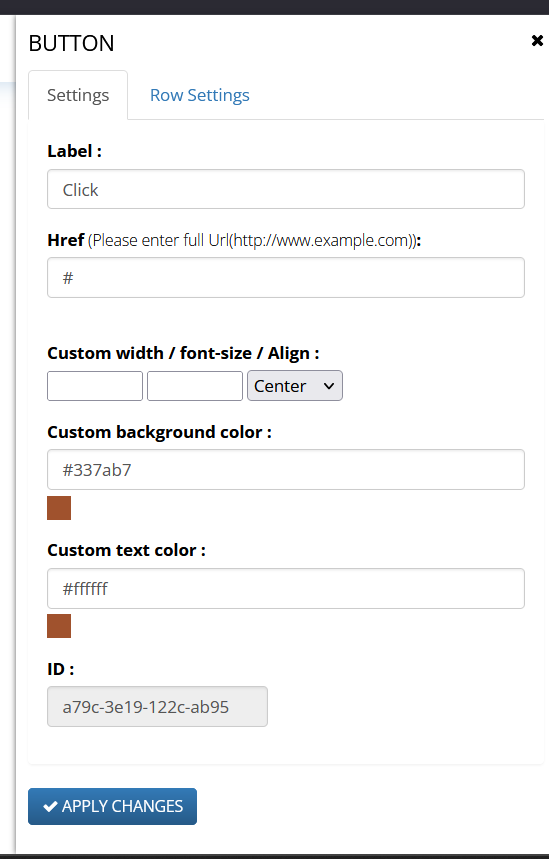
Button allows a clickable button to redirect the user to a webpage.
Label is a label for the button if it is hovered over within the email.
Href is the link to be opened when the button is pressed (please use the full URL).
You can also specify custom width, font-size, background colour and custom text colours.
Unsubscribe
Clicking ‘add unsubscribe link’ provides you with the system URL needed as part of adding an subscribe to the email.
When this URL is triggered by an enduser, they will automatically be ‘unsubcribed’ from marketing emails in the system, removing the need for manual processing.
We suggest copying the URL from this section and adding to either a hyperlink within a paragraph, the redirect URL of an image or the href of a button element.
Reordering
It is simple to drag and drop to reorder any elements within the screen, as well as moving them into columns in the grid system.
The red cross can be used to remove any element from your email.
Saving and editing

To save changes to your email, remember to hit ‘Save’ top-right of the editor. After hitting save you can leave the page and come back to your email to continue editing later.
To continue where you left off, go to ‘Marketing’ from the left menu of BuddyCRM, and click ‘edit’ on your campaign.

Do not click template again at this point, as this will prompt you to choose a template – discarding your changes! Instead choose ‘Review’:
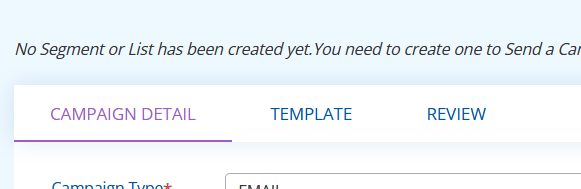
You can then select ‘edit’ to go back into the email builder and continue progress on your email.
Test mail
From the review screen, the test mail feature is useful for sending yourself emails to review before you push go on a live send. You can insert up to five email addresses (separated by a comma) and hit send to push this to your inbox to preview.
Tip: test mail uses a different email sender path, to free up the live email servers. Test emails may therefore go into junk/spam mail, this is normal! Live emails should not go into junk.
The next step would to schedule or send your email, there is a helpful guide here.
If you need any further support with email marketing, please don’t hesitate to get in touch with customer success on support@buddycrm.com.