
There are a couple of main ways to segment your BuddyCRM database so that email campaigns can be sent out to contacts, using Segments and using Lists. In this article we will explain how they differ and are used.
Segment Vs List: what is the difference?
List allows you to add contacts into a list manually and is perfect for situations where there is not a defined relationship between the records. An example would be competition winners, or customers where the relationship or need for the list may not be well documented in your CRM.
Segments are dynamic and based on records matching specific criteria within the CRM. Conditions can be stacked using AND and OR operators, to make powerful selections of records in your database.
Creating and adding to Lists
In Marketing, go to ‘Contact’ and then ‘List’:

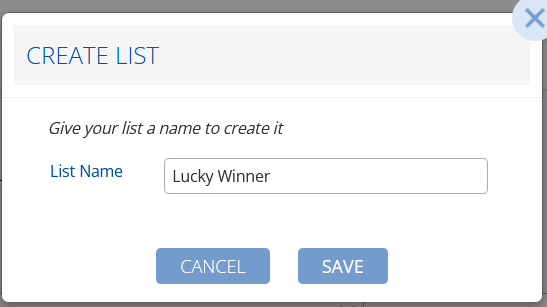
Hit the blue ‘Create List’ button top right, enter your list name and click ‘save’ to add your new list:
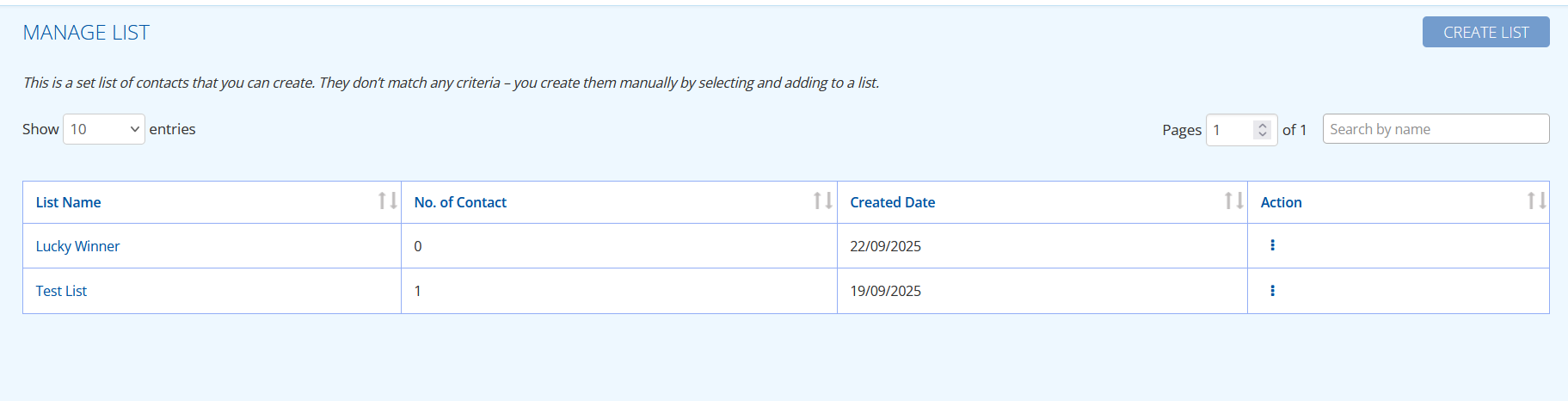
The main lists page shows all lists, and allows you to click into them to see who has been added.
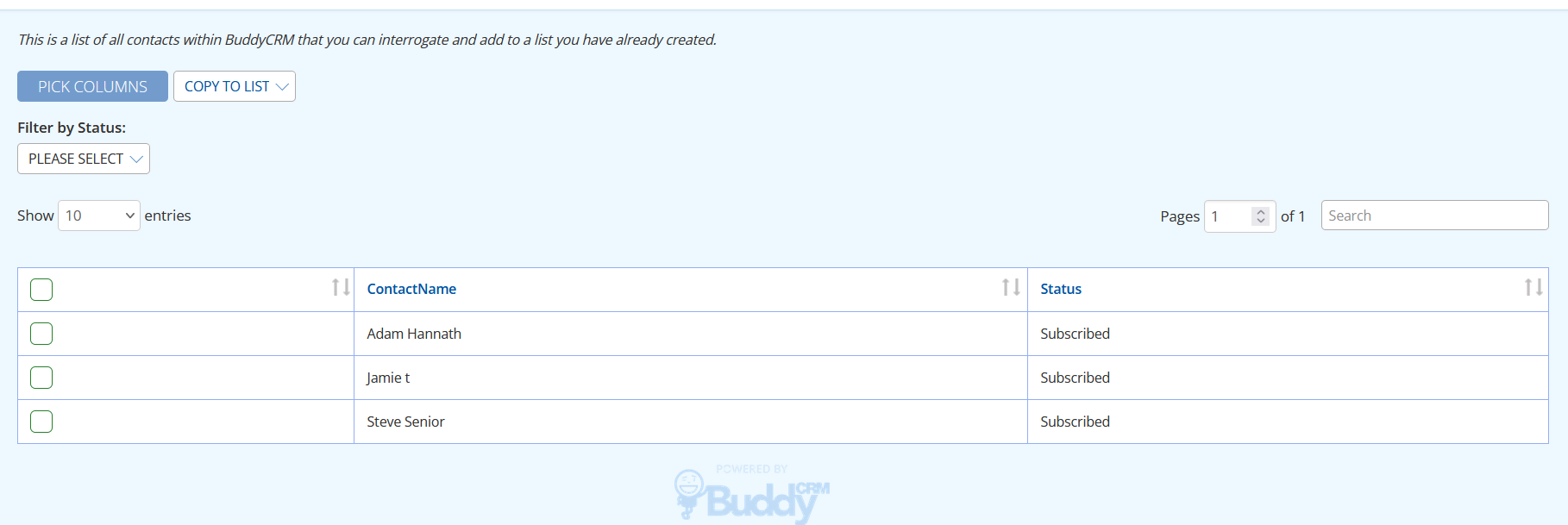
To add contacts into your list, go to ‘Contact’ and then ‘Contact’:

You can use ‘Pick Columns’ to choose the columns to help you to look through the list of contacts. Tip: adding email address to pick columns is a useful idea!
Scroll through the list of contacts to find the ones you want and select them using the leftmost check box. Select ‘copy to list’ and choose the list to add the contact to. Tip: the search bar can search for names or email addresses and is generally the quickest way to find a contact.
Creating Segments

From ‘Contact’, select ‘Segment’ to show a list of your segments and create new ones.
Create Segment From Report allows the user to enter a report name and will create the segment based on the contacts included on that particular report, useful if you have already got a report based selection you are happy with.
Alternatively, to build a new segment from scratch select Create Segment.
Give your segment a useful name in Segment Name.
Then, start by choosing the module of the system that you want to select from:
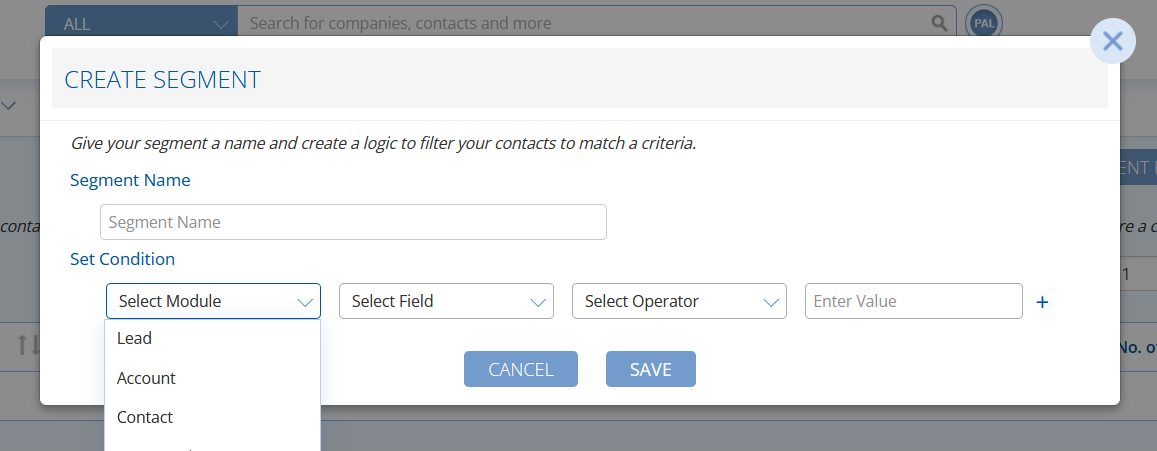
The module selected determines the fields available in ‘Select Field’:
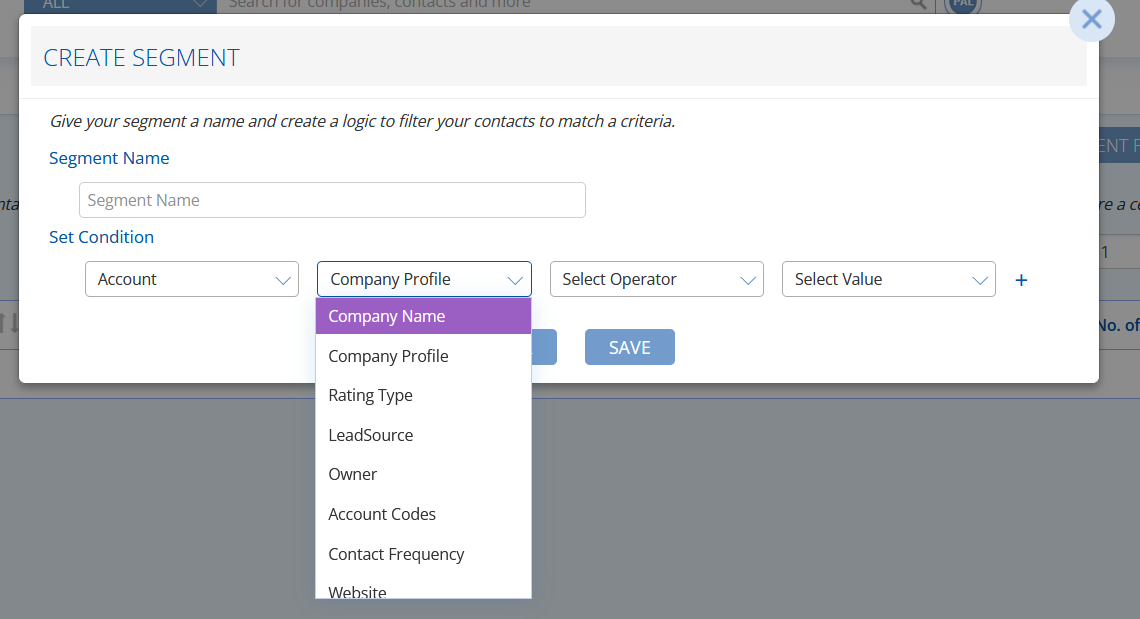
Operators allow you to choose to exact match (equal to), exclude something (not equal to), choose from a list (is one of) or do a partial match (contains):
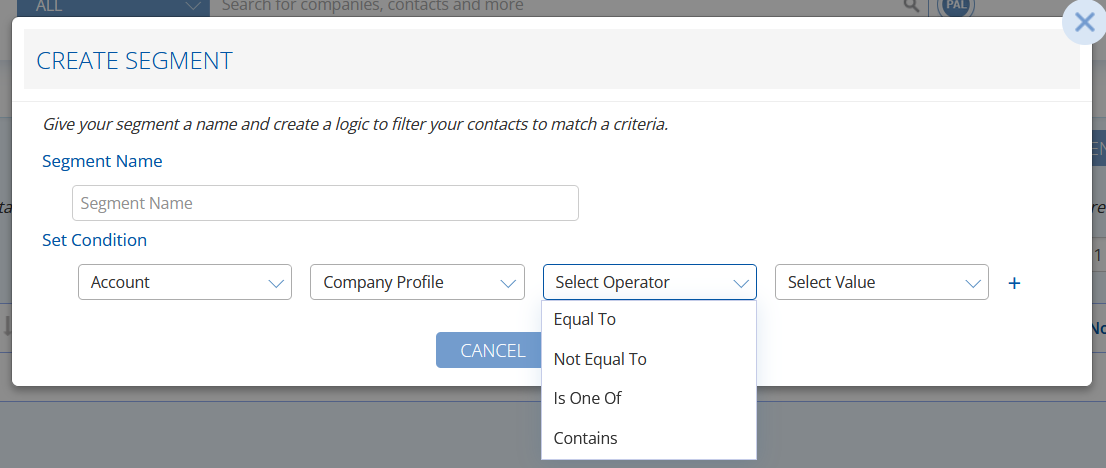
Finally depending on the type of field you can either enter the matching value (for text or numeric fields) or select from a list.
You can stack conditions by using the small plus icon to the right. As a default, the second condition will be ‘AND’:
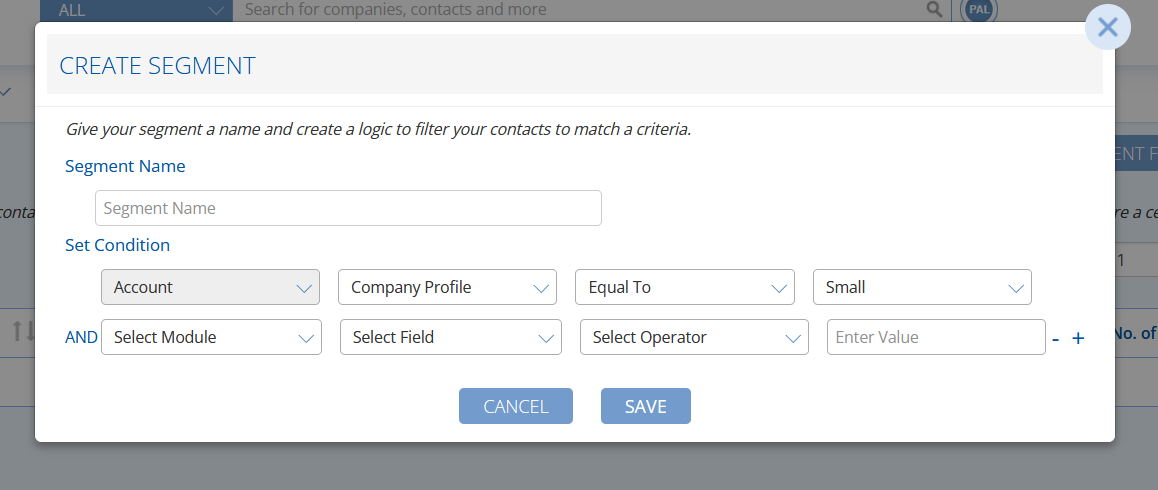
However clicking on the word AND will change it to ‘OR’:
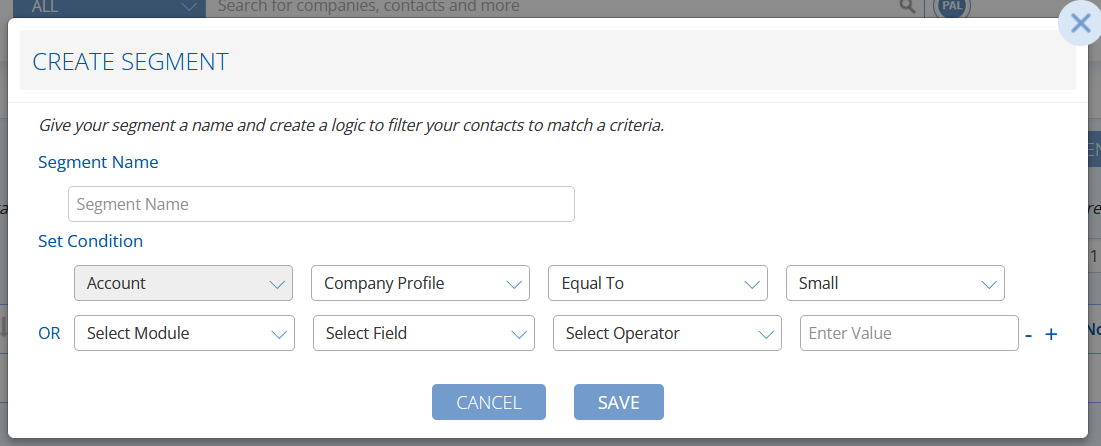
AND stacking is useful for narrowing down a selection further. OR means ‘this or this’, so can widen options.
When you have finished building your conditions, hit the blue save to create your segment.
Segments are dynamic, meaning that any new record that matches the conditions that have been set will be manually added to the segment (or likewise removed from the segment if they no longer match the conditions). This contrasts Lists, which are always manual and static. Both are powerful features to segment your database.
For advice in creating a new campaign, there is a guide here.