
BuddyCRM offers a powerful scheduled reports facility, allowing any business report to automatically deliver to your email on a set schedule. This helps you stay informed without logging in, saves time on manual exports, and ensures your team always has up-to-date insights at their fingertips.
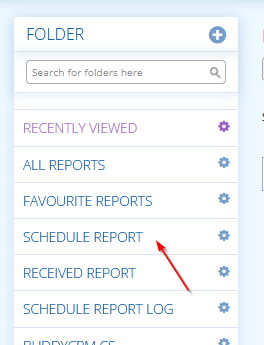
First go to Reports then select ‘Scheduled Reports’ from the folders list on the right of the screen:
Then hit the blue ‘Schedule Report’ action button to start the process:

This will open the report schedule screen:
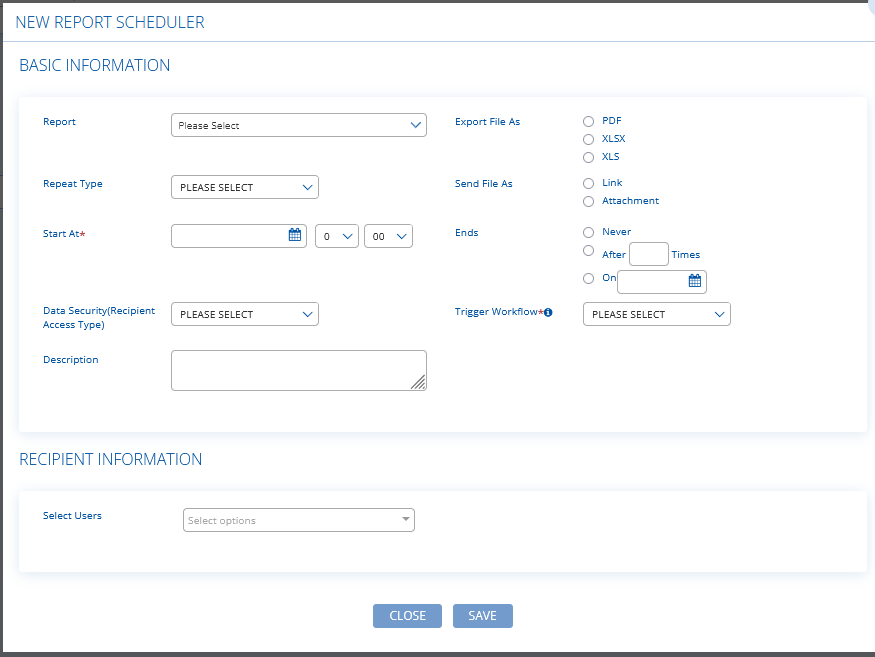
We will explain each of the options below:
Report allows you to select the report that you wish to schedule from your created reports
Export File As is the file format that the destination report will be output to, from PDF, XLSX (modern Excel) or XLS (legacy Excel format)
Repeat Type is the frequency that the scheduled report will run at, for example daily, weekly etc.
Send File As allows you to either send an email with an embedded link to the report (used for bigger datasets) or attach the file to the email directly as an attachment.
Start At determines the date and time of the first scheduled report run. If you select a Sunday and Repeat Type as weekly, then in this example the scheduled report will always send on a Sunday.
Ends provides options for when the scheduled report should stop, either repeating X many times or ending on a certain date. If the schedule should run forever, then just choose ‘never’.
Data Security (Recipient Access Type) is an important feature for determining what the recipient should see. If ‘all’ is set, then they can see all data. If ‘own data’ is selected, then they can only see data for records where they are the owner, perfect for records where specific sales managers can only see their own records. Finally ‘specific sharing’ allows the user to specify the owner’s records that should be visible.
Trigger Workflow allows scheduled reports to trigger automated system workflows in BuddyCRM. Most use cases will select ‘never’, however if you want to learn more about workflows then please speak to our customer success team.
Description allows you to write a brief description of the scheduled report, so that you can tell your various scheduled reports apart later. This is perfect if you have the same base report scheduled multiple times with different settings in each schedule.
Recipient Information allows you to select the users that will receive the scheduled report.
Select save to create your new scheduled report. If you need to make changes to a scheduled report, you can use the edit button in the scheduled reports grid.
Troubleshooting
If you’re not receiving your scheduled report at all, start by checking the Scheduled Reports section to confirm that the report is still active. Next, open the Scheduled Report Log within the Reports folder to review any recorded errors. Before doing so, make a note of the Scheduled Report ID from the Scheduled Reports screen — you’ll need it to locate the relevant entry in the log. If an error is listed, please contact BuddyCRM Support with the details for further assistance.
If only a single user is not receiving a scheduled report, check that they have been selected within recipients.
If you are receiving reports but there is not the expected data, it may be worth checking the data security options set – for example, perhaps you have selected specific sharing for a user that does not have any applicable data, or the wrong security has been set.
If you receive your scheduled report but the attached file is empty, it would suggest that no data meeting the criteria has been found. It may be worth checking the criteria in the report itself, for example maybe an activity report has been created for last week but no activities were scheduled last week. Or perhaps the report only contains data for users that do not match the data security settings set against the scheduled report.
Emails will come from noreply@buddycrm.com, it may be worth checking your junk or spam folder in the unlikely event that scheduled reports are going into junk. You can then whitelist this sender address to fix the issue.
If you need any further help with scheduled reports, please don’t hesitate to get in touch with customer success by email at support@buddycrm.com.